
To speed the bulk loading of user identities into FontAgent® Server, you can import those values from comma-separated-value (CSV) files.
Creating a CSV File
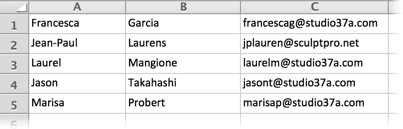
The first step in importing users from CSV, use Microsoft Excel or another application to create a CSV file of users with First Name, Last Name and Email Address in the first three columns as shown below.
Importing CSV File Contents
To add users from a CSV file, you must first launch the FontAgent Server Manager. You must also have been assigned permissions to manage FontAgent Server users.
To import the users listed in the CSV file into the server, follow these steps:
- Click Save and FontAgent Server adds the users.
- Click the Users tab in the Sidebar. A list of server users appears in the top pane of the Server Manager.
- Click the Add User button in the upper-right corner of the pane and select Users from CSV from the drop-down menu. The Add Users from CSV dialog appears.
- Drag and drop the CSV file containing the new user information into the dialog.

Other Methods for Adding Users
You can also add new users to FontAgent Server using these methods:
- Add individual users via the Server Manager
- Integrate with enterprise directory services